
Import Your Garmin History: Activities, HRV, Blood Pressure, Weight, Sleep and Resting Heart Rate
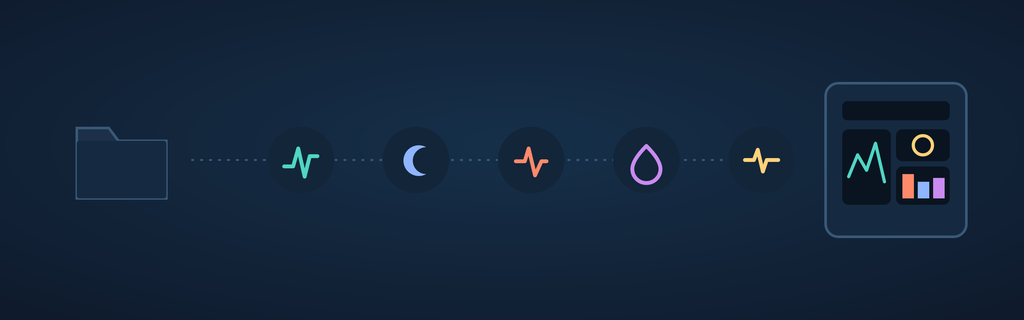
If you’ve been using a Garmin device for years, chances are you’re sitting on a mountain of health data that never made it into Runalyze — because Garmin’s live sync only reaches back so far, and the Connect API has its own retention limits. Until now, if you wanted your older resting heart rate, sleep, weight, blood pressure, or HRV history in Runalyze, you were mostly out of luck.
That changes today. Runalyze can now import this historical health data directly from your Garmin GDPR data export — no API limits, no missing years.
Garmin’s own Connect API only exposes a limited window of history: health data (sleep, weight, blood pressure, HRV, resting heart rate) is capped at the last 2 years, and activity data at the last 5 years. Anything older than that simply isn’t reachable through the normal sync — which is exactly the gap this new import closes.
What’s new
You can now import the following data types from a Garmin backup:
- Activities (FIT files, via the regular activity import)
- Resting heart rate (daily summaries)
- Sleep data
- Weight history
- Blood pressure
- HRV (labeled „Health Status“ in Garmin’s export)
Best of all, you don’t have to import everything at once. If your backup contains files you’re not interested in, or data you’ve already got in Runalyze, you can simply select which files to import and skip the rest.
Step 1: Request your data from Garmin
Garmin lets every user request a full export of their account data under GDPR. Head over to:
garmin.com/en-US/account/datamanagement
Request your backup there. Garmin will email you a download link once it’s ready — this can take anywhere from a few minutes to a day or two, depending on how much data is on your account.
Step 2: Find the right files in your backup
Once you’ve unpacked the export, you’ll find a folder structure that looks something like this:
<uuid>_1/
└── DI_CONNECT/
    ├── DI-Connect-Uploaded-Files/
    │   └── UploadedFiles_0-_PartN.zip                        → Activities (FIT files)
    ├── DI-Connect-Aggregator/
    │   └── UDSFile_<from>_<to>.json                        → Resting heart rate
    ├── DI-Connect-Wellness/
    │   ├── <from>_<to>_<profileId>_sleepData.json           → Sleep
    │   ├── <profileId>_userBioMetrics.json                  → Weight history
    │   ├── BloodPressureFile_<from>_<to>.json                → Blood pressure
    │   └── <from>_<to>_<profileId>_healthStatusData.json    → HRV
You don’t need to touch or convert anything — just locate the files you want to bring into Runalyze. The activity ZIPs contain your raw FIT files and go through the same regular activity import as any other FIT upload; the health data files each go through the new health data import described above.
Step 3: Upload to Runalyze
Head to your upload page: runalyze.com/activity/new-upload
Select the JSON files you’d like to import — one, several, or all of them — and Runalyze will take care of parsing them into your history. Since each file type is scoped to a specific kind of data, you’re always in control of exactly what gets added.
Runalyze also tries to avoid importing the same data twice — sleep data is checked for duplicates, and so are the other data types. That said, this isn’t a hard guarantee: in some edge cases duplicates can still slip through, so it’s worth a quick glance at your history after importing, especially if you’ve run an import before or your Garmin sync overlaps with the backup period.
Why this matters
Fitness data is only useful if you can see the full picture. A single missing year of resting heart rate or HRV can hide exactly the kind of long-term trend that matters most for spotting overtraining, illness, or genuine fitness gains. With this import option, your Garmin history is no longer capped by what the live sync happens to cover — it’s as complete as your own records.
Give it a try, and let us know what long-term trends you discover once your full history is back in Runalyze.